Collection content generation
WritePilot allows you to generate collection descriptions, meta titles, meta descriptions and collection image alt text.
You can create content for each collection individually or generate it in bulk.
Generate Collection Content in Bulk
Open Content Generation section of the sidebar.
Select the Collections tab to generate content for collections.
(Optional) Use the search, and filter options to find collections that need content. You can filter by missing AI-generated content (to show products without content or content not created by the AI generation feature).
For users on the free plan (where SEO generation is not available), all products and categories will be displayed as none would have been generated by the application.
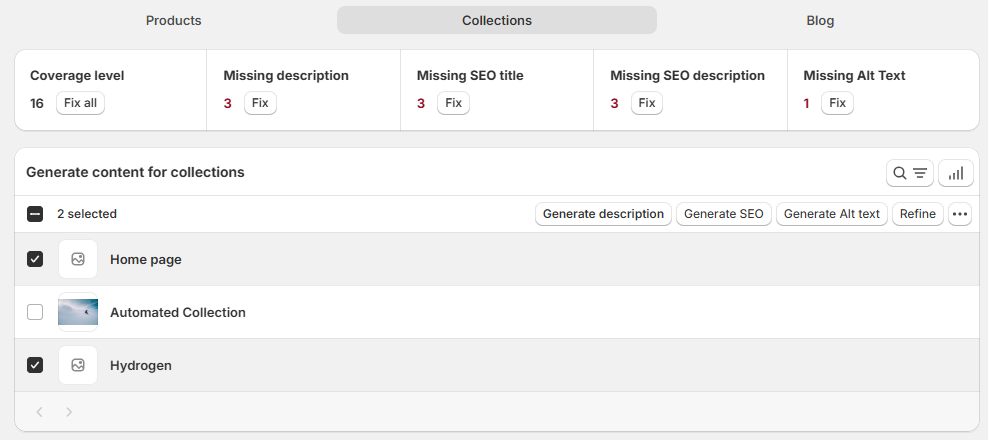
(Optional) At the top of the collection grid, you'll see a Content Audit bar. This bar gives you an overview of missing content.
You can click Fix to generate it in bulk for all applicable collections.To generate all missing content at once - Click Fix all. It works across all content types that currently have missing values. Generated content is automatically applied to the corresponding collections.
Select the collections you want to generate content for.
Choose the action you'd like to take:
Generate Description - create descriptions for selected collections with default prompt;
Generate SEO - create meta titles and description (available from Basic plan);
Generate Alt text - generate alt text for your collection images using the default prompt;
Refine - improve the grammar, syntax, and wording of your existing collection descriptions;
… > Generate descriptions with custom prompt - provide your specific instructions to AI for generating collection descriptions. You can either add your own prompt or select a custom prompt template from the dropdown. Note: Make sure to use the {{ all.product.data }} variable. Learn more.
Here’s how credit usage is calculated for generation:
1 collection description = 1 credit
1 SEO = 2 credits (1 for SEO title and 1 for SEO description)
1 Image alt text = 1 credit
1 refine = 2 credits
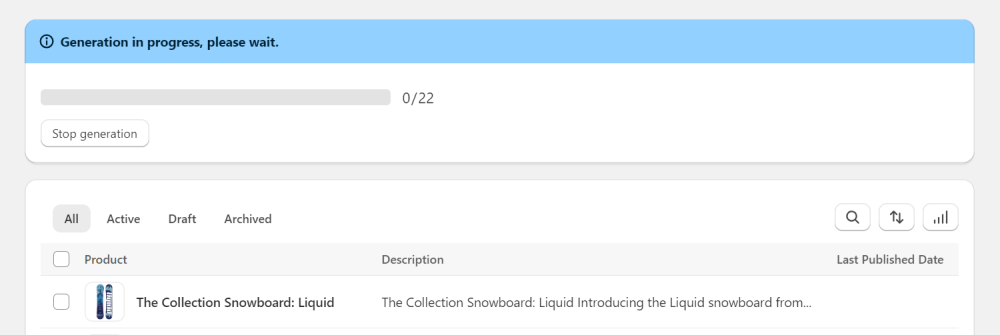
You can Stop generation whenever required.
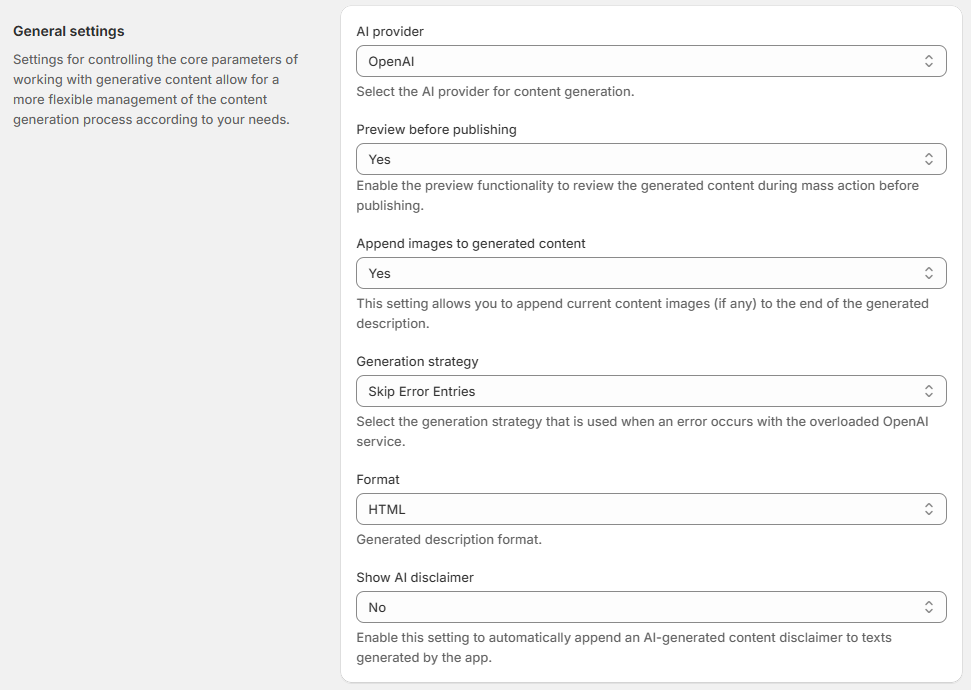
If the Preview before publishing option is enabled in Settings, you can preview the generated content and choose which version to publish.
To have content automatically generated for new collections as they’re added to your store, set up a rule on the AI auto-generation page.
Generate Collection Content Individually
You can also generate content for each collection individually for a more tailored experience.
Open Content Generation section of the sidebar.
Select the Collections tab to generate content for collections.
Find the collection you want to generate content for and click on it to enter the collection page.
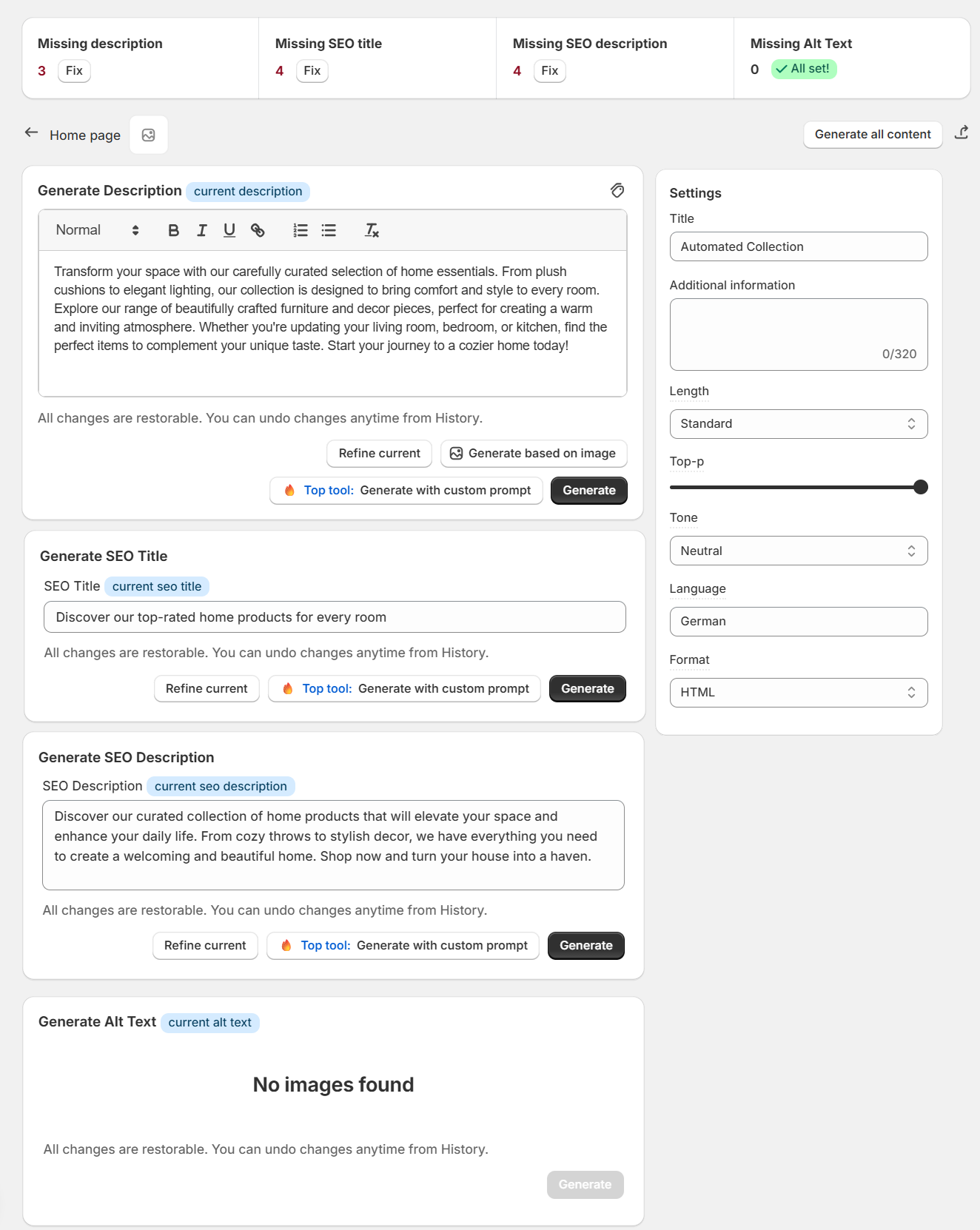
The collection page will display fields with data from your collections. If a field is empty, it means there is no content for that element yet (e.g., collection description, SEO title, SEO description, and alt text).
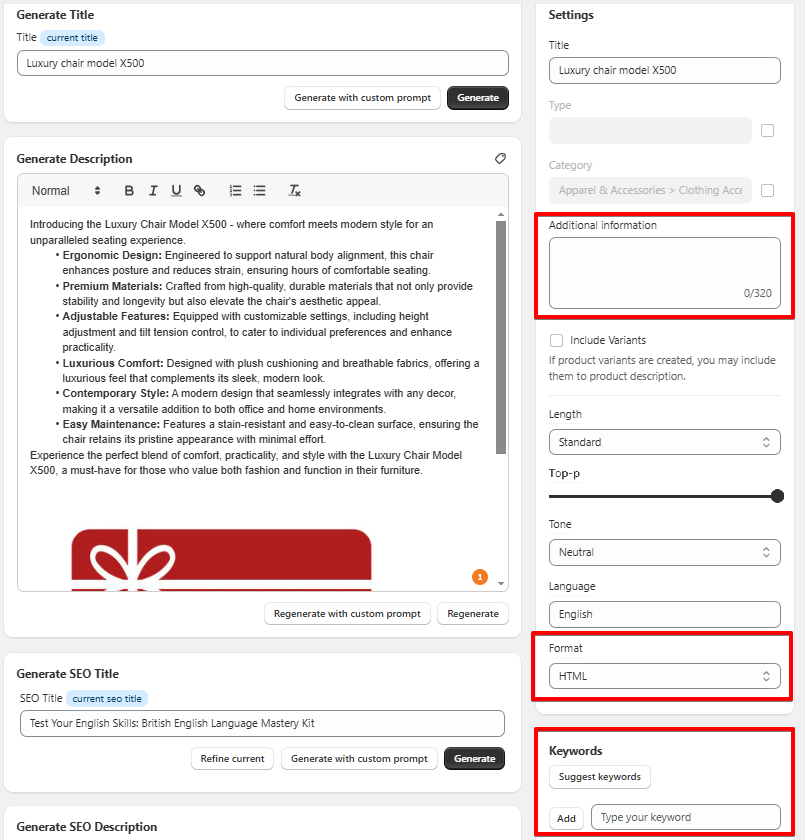
Optionally, To the right of the page, you can configure individual settings for each collection.
Add Additional Information
Specify length, tone, language, etc.
These settings will override your General Settings for this specific collection.
Optionally, If you want the AI to consider the current collection description when generating a new one (only for the ‘Generate Description’ option), enable the label. If you prefer the AI to generate the description from scratch, leave it disabled.
This feature works differently from the "Refine" option. When generating a description with a label on, AI uses all the product-specific settings you’ve provided — such as keywords, title, category — and the information from the current description to create a new description. In contrast, the "Refine" option simply improves the grammar, syntax, and wording of your existing description.
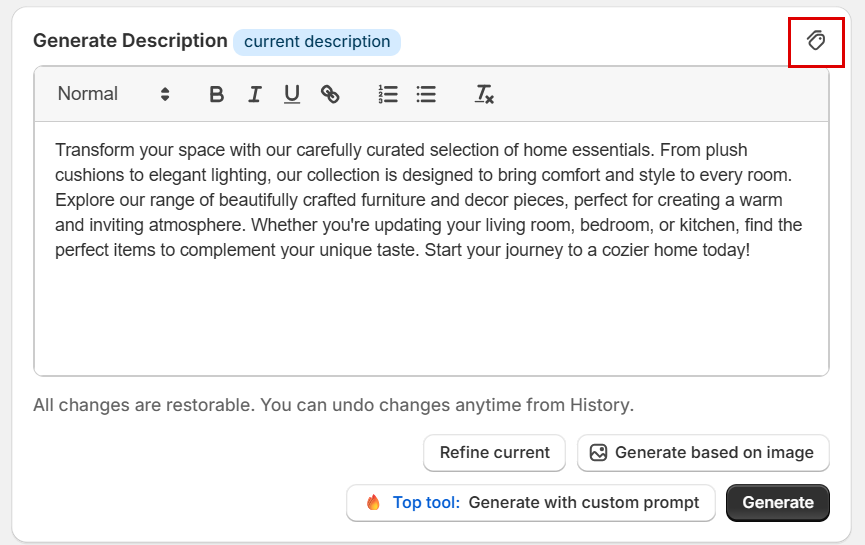
For each content field, you can choose one of the following actions:
Generate - create content with default prompt;
Generate based on image - select an existing collection image or upload a new one to use them as a source for content generation. You can upload your own image or switch to another at any time. Note: Each image-based generation costs 5 credits. Supported image formats: .jpg, .webp, .png; Max file size: 5 MB. The image is used only for generation and is not published as part of the collection description.
Generate descriptions with custom prompt - create content using your specific instructions to AI. Note: Make sure to use the {{ all.product.data }} variable . Learn more.
Refine - (available for existing content) improves the grammar, syntax, and wording of existing content.
Generate all content - Create content for all fields of the product at once. Note: Using the feature will consume credits based on the total number of content units generated in this single action. This provides a convenient way to quickly populate all essential content fields for a product.
Here’s how credit usage is calculated for generation:
1 collection description = 1 credit
1 SEO title = 1 credit
1 SEO description = 1 credit
1 Image alt text = 1 credit
1 refine = 2 credits
Save changes to publish.
After generation, generated content can be edited anytime. All generations are recorded in History, where you can view or restore previous versions (if available).
All published content remains saved even after uninstalling the app.